A few days ago, I posted a detailed guide on how I got Cursor running inside a container using jlesage/docker-baseimage-gui. And honestly? That setup worked. But “worked” and “worked well” are two entirely different things, and over the past few days, I kept running into issues that pushed me to look elsewhere.
I’m talking:
- Cursor crashing randomly after a few minutes.
- Keyboard input stuck in VNC, had to refresh the page to get it working again (and again… and again).
- Folder sharing with host via bind mounts = permissions hell. Either container complained or the host did. No clean workaround.
- Making the user
sudo-ready took extra scripts and hacks. - Debugging startup issues? Welcome to
cont-init.dhell.
It was becoming messy real fast.
Table of contents#
Open Table of contents
Why I Gave Up on Single App Containers#
All I wanted was a clean setup to run Cursor with:
- Bash shell working inside it.
- Sudo powers.
- Ability to install/update software.
- Folder sharing without pain.
But what I ended up with was me hacking around every edge case, even though the whole point of containers is to keep things simple and reproducible.
Sure! Here’s a rephrased, cohesive version of your section in a smooth, natural tone — nothing important left out, just easier to read and more conversational:
Meet x11docker#
When I first looked at x11docker, it felt like complete overkill. I mean, a full desktop environment? Just to run Cursor?
But here’s the thing: sometimes it’s better to go with something that’s simple, stable, and a bit heavier, rather than wrestling with a lighter setup that needs constant fixing and tweaking. After dealing with all the headaches in jlesage/docker-baseimage-gui, switching to x11docker felt like a breath of fresh air.
Turns out, x11docker isn’t just good, it’s perfect for running full Linux desktop environments inside containers. It’s clean, extendable, and doesn’t rely on clunky VNC or browser-based access. And the best part? It just works.
Why x11docker clicked for me#
Here’s what makes x11docker such a solid choice:
- No lag, no stuck keys, just smooth interaction.
- Offers remote access options (SSH, VNC, or HTML5).
- Clipboard sharing with the host just works, out of the box.
- Run either full desktop environments or single GUI apps (seamless mode).
- File sharing? Super easy. No mount permission hell, just use
--homeand you’re good. - Comes with sane security defaults, but lets you enable
sudoif you need admin access inside. - Requires almost nothing on the host, just X and either Docker, Podman, or nerdctl. (For smoother experience,
nxagentorXephyris recommended. You can also use the prebuiltx11docker/xserverimage.)
If you’ve used docker-baseimage-gui before, you’ll feel the difference immediately. No hacks. No scripts. No weird workarounds. Just a fully working Linux desktop in a container, with zero drama.
My x11docker Setup#
Here’s how I set it all up. I’m using podman here, but you can easily swap it with Docker, the commands are basically the same.
# xfce desktop with dev tools
FROM x11docker/xfce
RUN apt-get update && apt-get install -y \
git curl apt-utils sudo gnupg
# install Node.js if required
RUN curl -sL https://deb.nodesource.com/setup_24.x | bash -
RUN apt-get install -y nodejs
Save that as Dockerfile, and build the image:
podman build -t x11docker-xfce:1 .
Running the Container#
Here’s the command that works beautifully for me:
x11docker --desktop \
--backend=podman \
-I \
--clipboard \
--cap-default \
--sudouser \
--home \
x11docker-xfce:1
Let’s break this down:
--desktop: Start a full XFCE desktop session, remove it if you want seamless mode--backend=podman: whatever you’re using as your containerization tool-I: Enable internet access (no network jail)--clipboard: Sync clipboard between container and host--cap-default: Use default container capabilities--sudouser: Lets the container user runsudo--home: Automatically persist home directory between container runs
Persistent Storage#
Thanks to the --home flag, everything inside your home directory sticks around between sessions. That means:
-
Whatever you download inside the XFCE session (e.g. Cursor
.deb) stays. -
These files are available in host at:
# default shared folder when --home flag used ~/.local/share/x11docker/x11docker-xfce/ -
Want to copy a file from host → container? Just drop it in that folder.
Clean. Predictable. No permission nightmares.
Installing Cursor#
The only manual step I do each time is installing Cursor, which is no big deal.
-
Download the
.deband place it inside the shared home folder. -
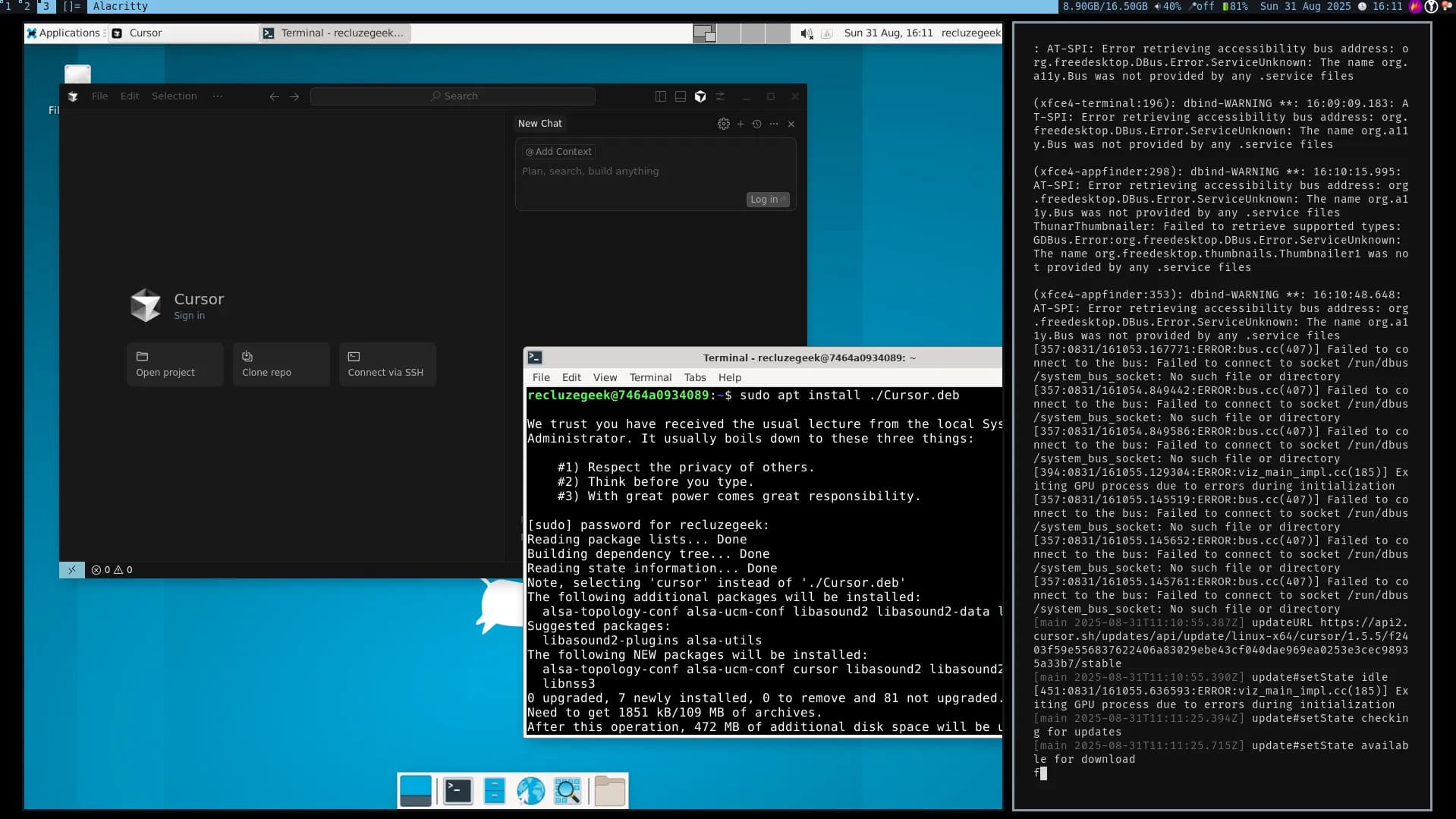
Inside XFCE, just run:
sudo apt install -y ./Cursor.deb
It takes 5 seconds. And once done, Cursor launches perfectly in a full desktop session.
Compared to docker-baseimage-gui?#
| Feature | docker-baseimage-gui | x11docker |
|---|---|---|
| GUI Backend | VNC in Browser | Native X11/Wayland (real desktop) |
| Input Issues | Frequent keyboard glitches | Smooth native input |
| Folder Sharing | Messy, permission issues | Simple with --home or --share |
| Requires Init Scripts? | Yes, for sudo/shell/entrypoint hacks | Nope |
| Installing apps | Needs hacks + volume mounts | Just apt install inside XFCE |
| Desktop Environment | None (single-app focus) | Full XFCE or LXQt (or any DE you want) |
| Performance | Lightweight, but VNC limited | Slightly heavier, but native UX |
Final Thoughts#
If docker-baseimage-gui was my first real taste of GUI containers, then x11docker was the upgrade I didn’t know I needed.
I’m now running:
- A full XFCE desktop inside a container
- With
Cursor,Node.js,Git,bash,sudo, and everything else I need - Seamless host ↔ container file access
- No browser VNC jank
- No extra init script hacks
- No weird sudo workarounds
I can focus on building, writing, coding, without debugging the container itself every 5 minutes.
If you’ve worked with my previous setup even for a couple of days, you’ll immediately appreciate the beauty of x11docker. It’s a bit heavier, sure, but you get your sanity back.